






Signing a PDF means adding your typed, drawn or image signature to the file with a tool such as Adobe Acrobat Reader, Mac Preview, iPhone Markup or Microsoft Edge. Open the PDF, choose the signature option, create your signature, place it on the page and save a copy. These methods are free, need no printer, and work for most everyday documents in the United States.
Below you will find step-by-step instructions for each device, including BlueNotary’s free eSign tool for signing in any browser, the difference between an electronic and a digital signature, the documents that still need wet ink or a notary, and a simple way to choose between free and paid tools.
How do you sign a PDF for free?
You can sign a PDF for free with apps most people already have: Adobe Acrobat Reader on Windows or Mac, Preview on a Mac, Markup on an iPhone or iPad, or the Draw tool in Microsoft Edge. To sign in a browser on any device and send the signed file straight to someone else, BlueNotary’s free eSign tool does both at no cost.
| Method | Cost | Works on | Signature options | Best for |
|---|---|---|---|---|
| Adobe Acrobat Reader (Fill & Sign) | Free | Windows, Mac, iOS, Android | Type, draw or image; certificate signatures with a digital ID | Most people and most documents |
| Mac Preview | Free, built in | Mac | Trackpad, camera or a nearby iPhone or iPad | Mac users; signatures sync through iCloud Drive |
| iPhone or iPad Markup | Free, built in | iOS and iPadOS | Finger or Apple Pencil | Signing email attachments on the go |
| Microsoft Edge | Free, built in | Windows | Draw (ink) only | Quick signatures on Windows |
| BlueNotary eSign | Free | Any device with a web browser | Draw, with a choice of ink color | Signing online and sending the file straight to your recipient’s inbox |
If you only need to sign a document yourself, the built-in apps are enough. If you want to sign from any device without installing anything, or send the signed copy straight to the other party, use BlueNotary eSign. Sources for each method are linked in the steps below.
How to sign a PDF on any device
Each method follows the same pattern: open the file, choose the signing tool, create your signature once, place it and save. The steps below are taken from each vendor’s own help pages, so menu names match what you will see. Save the signed file under a new name so you keep an unsigned original.
Adobe Acrobat Reader (Windows or Mac)
Adobe’s free Reader signing guide sets out these steps:
- Open the PDF in Acrobat Reader.
- Select the Sign icon, or choose Tools and then Fill & Sign.
- Choose Type, Draw or Image to create your signature, then select Apply.
- Click where the signature belongs, then move or resize it.
- Save the file under a new name.
On Android, use the same Fill & Sign tool inside the free Acrobat Reader app. Adobe has retired its separate Fill & Sign mobile app, so avoid older guides that recommend it.
Mac Preview
Open the PDF in Preview, click Show Markup Toolbar, then click Sign. Apple’s Preview guide lets you create a signature on the trackpad, by holding a signature on white paper up to the camera, or by drawing on a nearby iPhone or iPad. Drag the signature into place and resize it with the handles.
iPhone or iPad
In the Mail app, tap the PDF attachment, tap Markup, then tap the + button and choose Signature, as described in Apple’s guide to annotating email attachments on iPhone. Draw your signature with a finger or Apple Pencil, place it, then tap Done and reply with the signed file.
Windows with Microsoft Edge
Open the PDF in Edge, choose Draw, and sign with a mouse, pen or finger. Microsoft’s Edge PDF documentation confirms that inking can be used to sign or fill out PDF forms, and that Edge can view and validate certificate-based digital signatures. It does not describe creating them, so use Acrobat when a certificate signature is required.
BlueNotary eSign (any device, in your browser)
BlueNotary’s eSign page lets you sign documents for free with no printing or scanning, and BlueNotary describes the signatures as legally binding:
- Open the eSign page on your phone, tablet or computer.
- Draw your signature in the signature box and pick an ink color. Select Clear & Draw Again to redo it, or Download your signature to keep a copy.
- Select eSign My Document and enter your email address to get started.
- Add your PDF and place your signature where it belongs.
- Send the signed document straight to your recipient’s inbox, with no download needed.
Use this route when you are signing on a shared or work device where you can’t install apps, or when the signed file needs to reach someone else right away.
Signing a PDF you received by email
On a phone, use Markup directly from the attachment as described above. On a computer, save the attachment first, sign it in Acrobat Reader or Preview, then attach the saved copy to your reply. Signing the saved file, rather than a browser preview, makes sure your signature is kept in the document you send. To skip the re-attach step, sign it in BlueNotary eSign and send it straight back to the sender’s inbox.
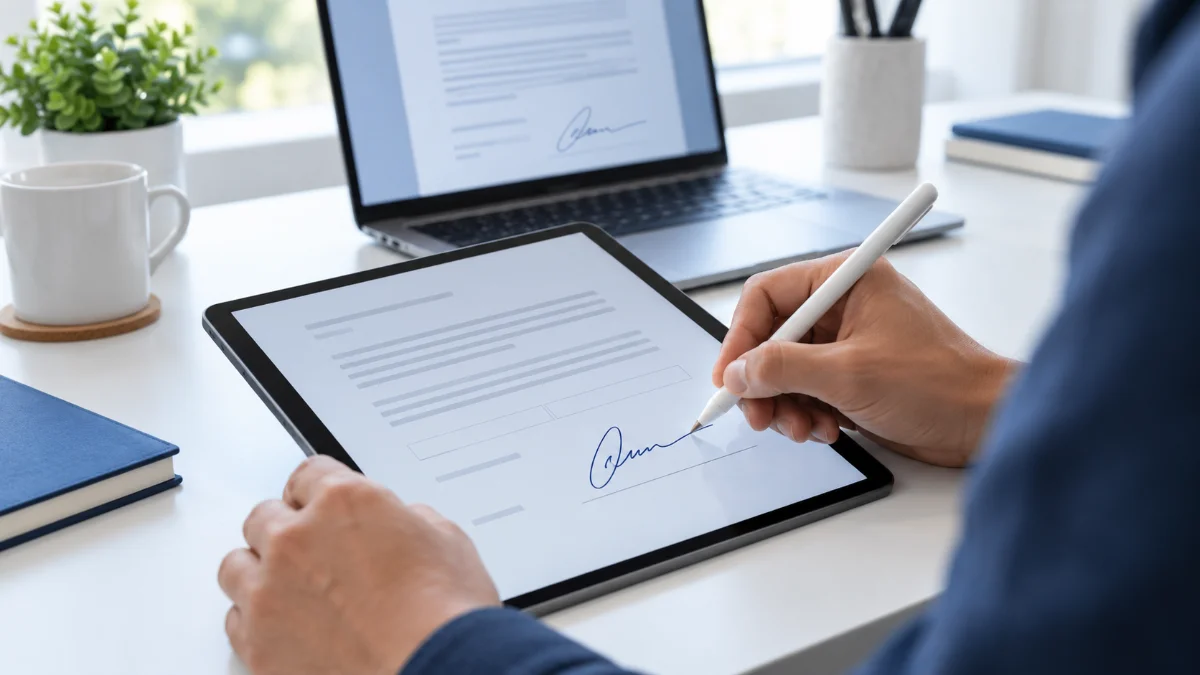
Electronic vs digital signatures on a PDF
An electronic signature is any typed name, drawing or image you adopt as your signature. A digital signature is a specific, certificate-based type of electronic signature that uses a digital ID to link your identity to the file and reveal later edits. Most everyday documents only need an electronic signature, but regulated or government filings may ask for a digital one.
| Feature | Electronic signature | Digital signature |
|---|---|---|
| What it is | Typed name, drawing or image | Certificate-based cryptographic signature |
| Needs a digital ID | No | Yes |
| Shows later edits | No | Yes, validation fails if the file changes |
| Free options | Acrobat Reader, Preview, Markup, Edge, BlueNotary eSign | Acrobat Reader or Acrobat, once you have a digital ID |
| Typical use | Leases, permission slips, offer letters | Government filings, regulated industries, engineering documents |
How to digitally sign a PDF
To digitally sign a PDF in Acrobat, you first set up a digital ID, either self-signed or issued by a certificate authority, and then sign with Acrobat’s certificate-based signing option, as covered in Adobe’s guide to setting up certificate-based signatures. The PDF format itself is defined by ISO 32000-2 (PDF 2.0), and advanced PDF signatures follow the European PAdES standard, ETSI EN 319 142-1, which lets compliant readers check who signed and whether the file changed.
Why won’t a PDF let me sign?
A PDF may refuse a signature because its security settings do not allow signing, its creator certified or locked it, it is an XFA form, or the signing option requires a digital ID you have not set up. Try these checks in order:
1. Open it in Acrobat Reader rather than a browser viewer.
2. Check document security in the file properties and ask the sender for an unlocked copy if signing is disallowed.
3. Look for a certified or signed status. Only fields the author allowed can change.
4. Check for an XFA form. An Adobe community expert notes that XFA forms can only be signed with a certificate, not with Fill & Sign.
5. Set up a digital ID if the form requires a certificate signature.
Is a signed PDF legally binding?
Yes, for most contracts and forms in the United States, a signed PDF is legally binding when the signer intended to sign and agreed to transact electronically. The federal ESIGN Act says a signature or contract may not be denied legal effect solely because it is in electronic form (15 U.S.C. 7001(a)). Some documents are excluded, and state rules add further conditions.
State law adds a second layer. Adobe’s summary of US e-signature law reports that the Uniform Electronic Transactions Act has been adopted by 49 states, the District of Columbia, Puerto Rico and the U.S. Virgin Islands. New York instead uses its Electronic Signatures and Records Act, which New York’s Office of Information Technology Services says gives electronic signatures “the same force and effect” as signatures produced by non-electronic means (NYS ITS ESRA guidelines).
The main federal exceptions are listed in 15 U.S.C. 7003. They include wills, codicils and testamentary trusts; adoption, divorce and other family-law matters; court orders and official court documents; and certain notices, such as utility shutoffs, foreclosures and evictions for a primary residence. Some states also require paper or extra formalities for powers of attorney and healthcare directives, so check the rules for those documents before signing electronically.
Signing PDFs for use in another country
If a PDF is going abroad, check the signature level the recipient expects. The European Union’s eIDAS Regulation recognizes simple, advanced and qualified electronic signatures, and only a qualified electronic signature has “the equivalent legal effect of a handwritten signature” under Article 25(2). A simple drawn signature may be accepted for routine paperwork but refused for formal filings, so confirm with the receiving organization first.
Which PDF signing tool should you choose?
Use a free tool such as Acrobat Reader or BlueNotary eSign if you only need to sign PDFs and send them on. Pay for a service when you regularly send signature requests to several people, need templates and a detailed audit trail, or need certificate signatures for regulated work. Use a notary service only when the receiving party requires the signature to be notarized.
| Tool | Free option | Paid price (US, checked Sept. 24, 2026) | Good fit |
|---|---|---|---|
| BlueNotary eSign | Free: draw your signature, sign and send | No paid plan needed (BlueNotary eSign page, checked Oct. 6, 2026) | Signing and sending PDFs online at no cost |
| Adobe Acrobat Standard | Acrobat Reader signs for free | $14.99 a month on an annual plan | Editing PDFs and sending signature requests |
| Adobe Acrobat Pro | Same as above | $19.99 a month on an annual plan | Heavy PDF editing and advanced signing |
| DocuSign Personal | Free account can sign documents sent to you | $11 a month, annual commitment, 5 envelopes a month | Occasional senders who want a widely used platform |
| Dropbox Sign | Free plan for signing your own documents | Essentials $15 a month, or $10.05 a month billed annually | Small teams sending a handful of documents |
| Smallpdf | 2 documents a month on its Sign.com free account | Check current plan | Occasional browser-based signing |
A quick decision guide:
- Signing your own lease, form or offer letter: use Acrobat Reader, Preview, Markup, Edge or BlueNotary eSign.
- Collecting signatures from others a few times a month: a free or entry-level plan may be enough, so check each vendor’s current limits.
- Sending contracts every week: a paid plan with templates and audit trails saves time.
- A government or regulated filing that asks for a digital signature: use Acrobat with a digital ID.
- Signing a PDF and sending it on when no notary is needed: BlueNotary’s free eSign tool lets you sign online and send the document straight to your recipient’s inbox, without booking a notarization.
When a signed PDF also needs a notary
A signature alone does not satisfy a notarization requirement. Affidavits, many powers of attorney and some vehicle title and real estate documents require a notary to verify your identity and complete a notarial certificate. With remote online notarization (RON), you meet a commissioned notary by live video and the notary applies an electronic seal to the PDF; the ESIGN Act allows a notarization requirement to be met electronically under 15 U.S.C. 7001(g). RON is different from in-person electronic notarization (IPEN), where you sign an electronic document in the notary’s physical presence. Whether a remotely notarized PDF is accepted depends on the notary’s state law and the receiving organization, so confirm before you book. You can read more about the federal rules in our guide to the ESIGN Act and about how remote online notarization works.
Not sure whether your PDF needs a signature, a digital signature or a notary? Email us at [email protected] with the document type and where it is going, and we will point you to the simplest option.
Frequently asked questions
What is the easiest free way to sign a PDF?
For most people, the easiest free option is the Fill & Sign tool in Adobe Acrobat Reader on a computer, or Markup on an iPhone or iPad. Both let you type, draw or reuse a saved signature and then save the signed copy. If you don’t want to install anything, BlueNotary’s free eSign tool works in any browser and can send the signed file for you.
Is a typed signature on a PDF legal?
Usually yes. Under the federal ESIGN Act, a signature cannot be denied legal effect solely because it is electronic, and a typed name can count when you intend it as your signature. Excluded documents, such as wills, follow separate rules.
How do I sign a PDF on Android?
Install the free Adobe Acrobat Reader app, open the PDF, choose Fill & Sign, then draw your signature with your finger and place it. Save a copy before you send it. Adobe’s separate Fill & Sign app has been retired.
Can I sign a PDF in Google Chrome?
Chrome’s built-in PDF viewer offers only basic tools, so it is not a dependable way to sign. For a reliable result, open the file in Acrobat Reader, Microsoft Edge or Mac Preview, or use a free browser-based tool such as BlueNotary eSign.
How do I check whether a PDF signature is valid?
For a certificate-based digital signature, open the file in Acrobat Reader and check the signature panel for a valid status. A typed or drawn signature shows no validation status, so keep the email thread or audit trail as evidence of who signed and when.
Can a signed PDF be notarized online?
Often, yes. With remote online notarization, you upload the PDF, verify your identity and sign on a live video call with a commissioned notary, who then adds an electronic seal and certificate. Confirm first that the receiving organization accepts remotely notarized documents.
Ready to sign your PDF? eSign it free with BlueNotary and send it straight to your recipient. If it also needs to be notarized, start an online notarization and complete it with a commissioned notary over live video.